Documentation

MioCC User Manual

Official User Manual for MioCC.
Learn how to protect text and files on Android and Windows.

Document Version

1.0

Applies to

MioCC 1.0.x

Last updated

July 2026

Support model

Official documentation first.

Before you begin

MioCC
  • Choose a strong password.
  • Keep it in a safe place.
  • MioCC cannot recover forgotten passwords.
  • Never send the password together with the protected file.

Welcome

MioCC protects text and files on your own device. You do not need an account to start. You choose a password for the session, select LOCK or UNLOCK, add text or files, and receive local output.

Most important rule: MioCC does not recover forgotten passwords. Keep the password safely outside the app.

Design principles

Offline first

Core protection happens locally on your device.

No cloud processing

Your original text and files are not uploaded for encryption or decryption.

No account required

The app is designed to start without registration.

Your password stays with you

The password is not stored by MioCC and cannot be recovered by MioCC.

Local control

You decide what to protect, where to keep output, and with whom to share it.

Clear reports

Reports confirm what happened without storing your secrets.

First Start

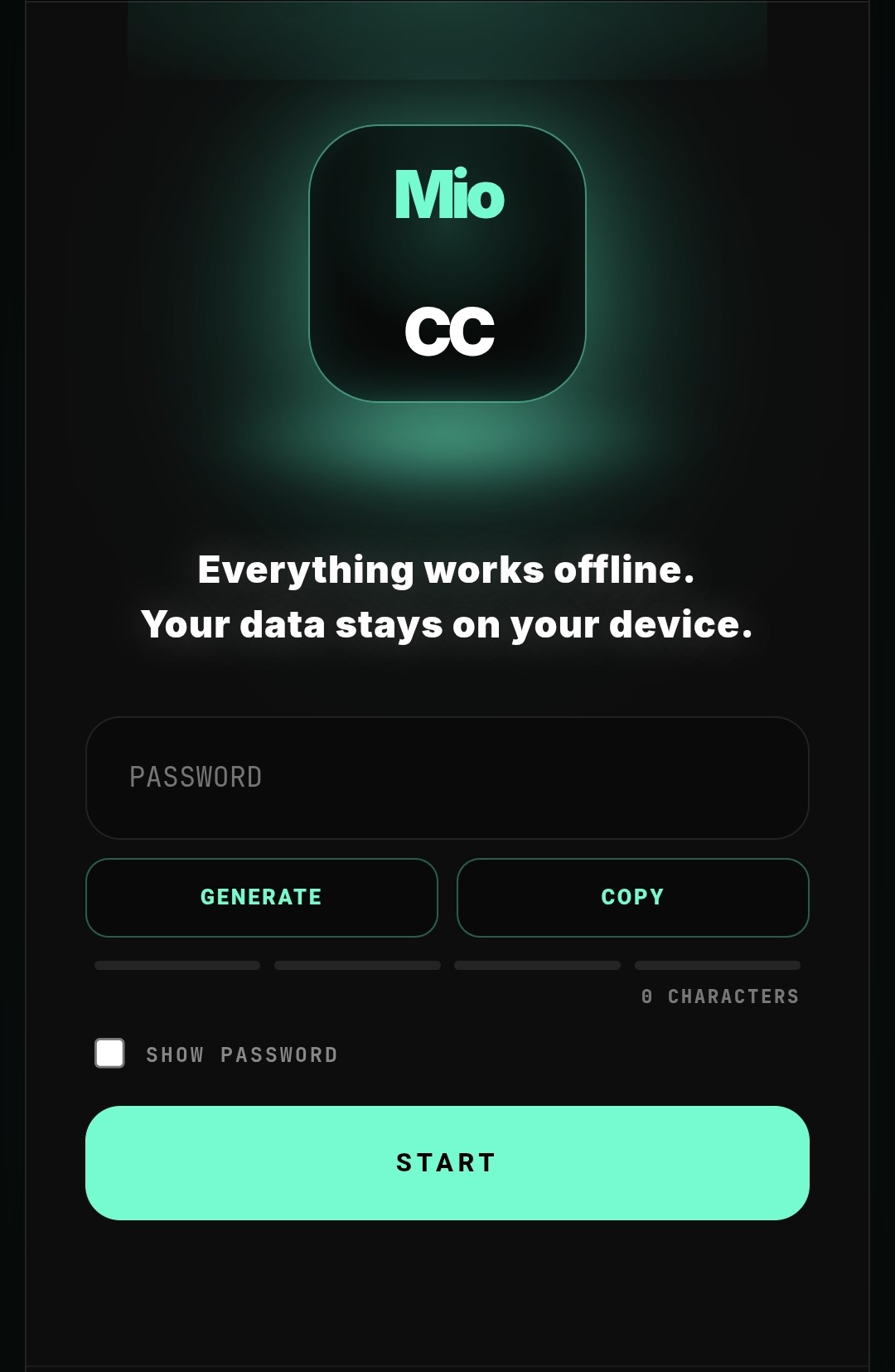
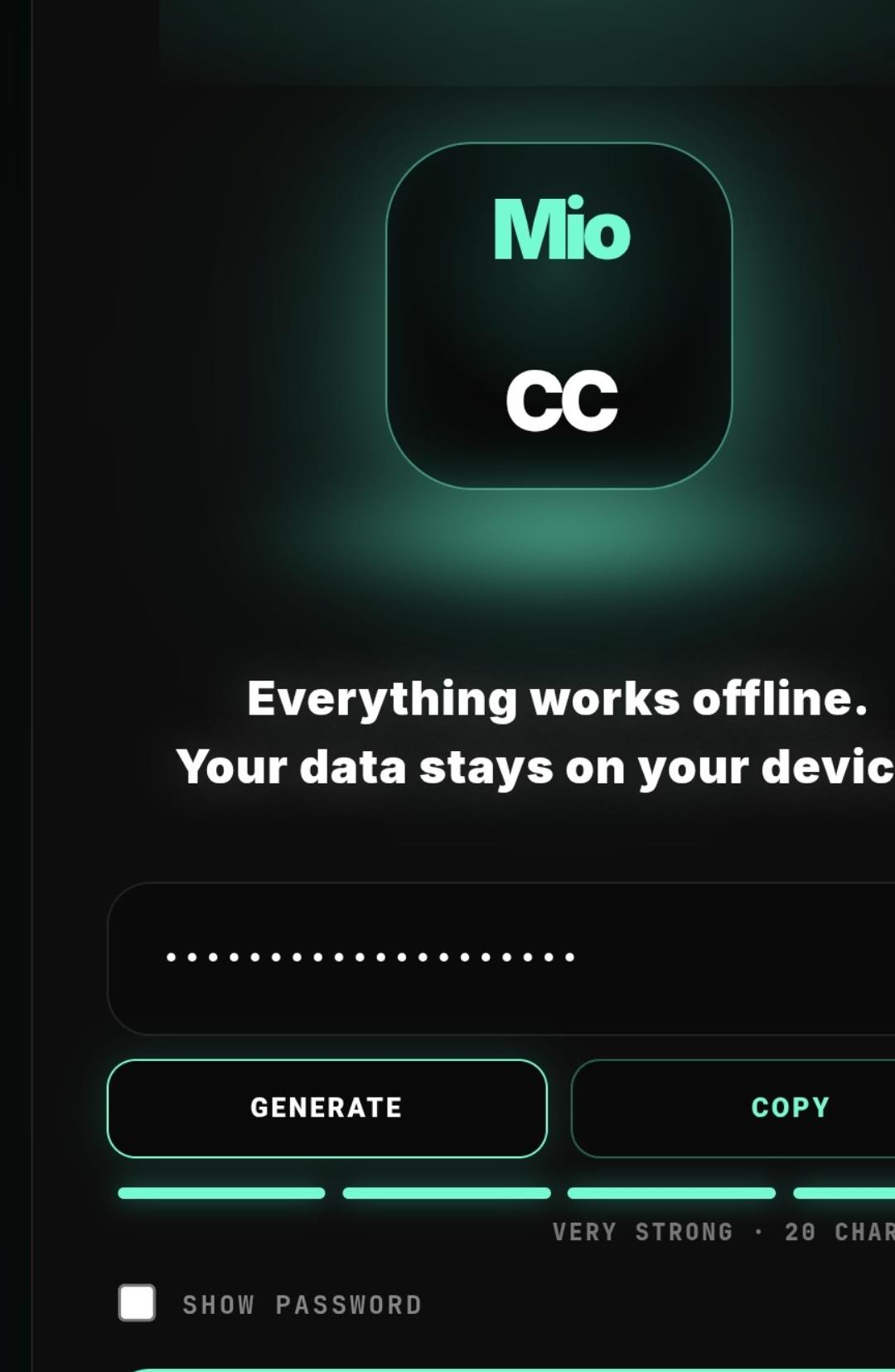
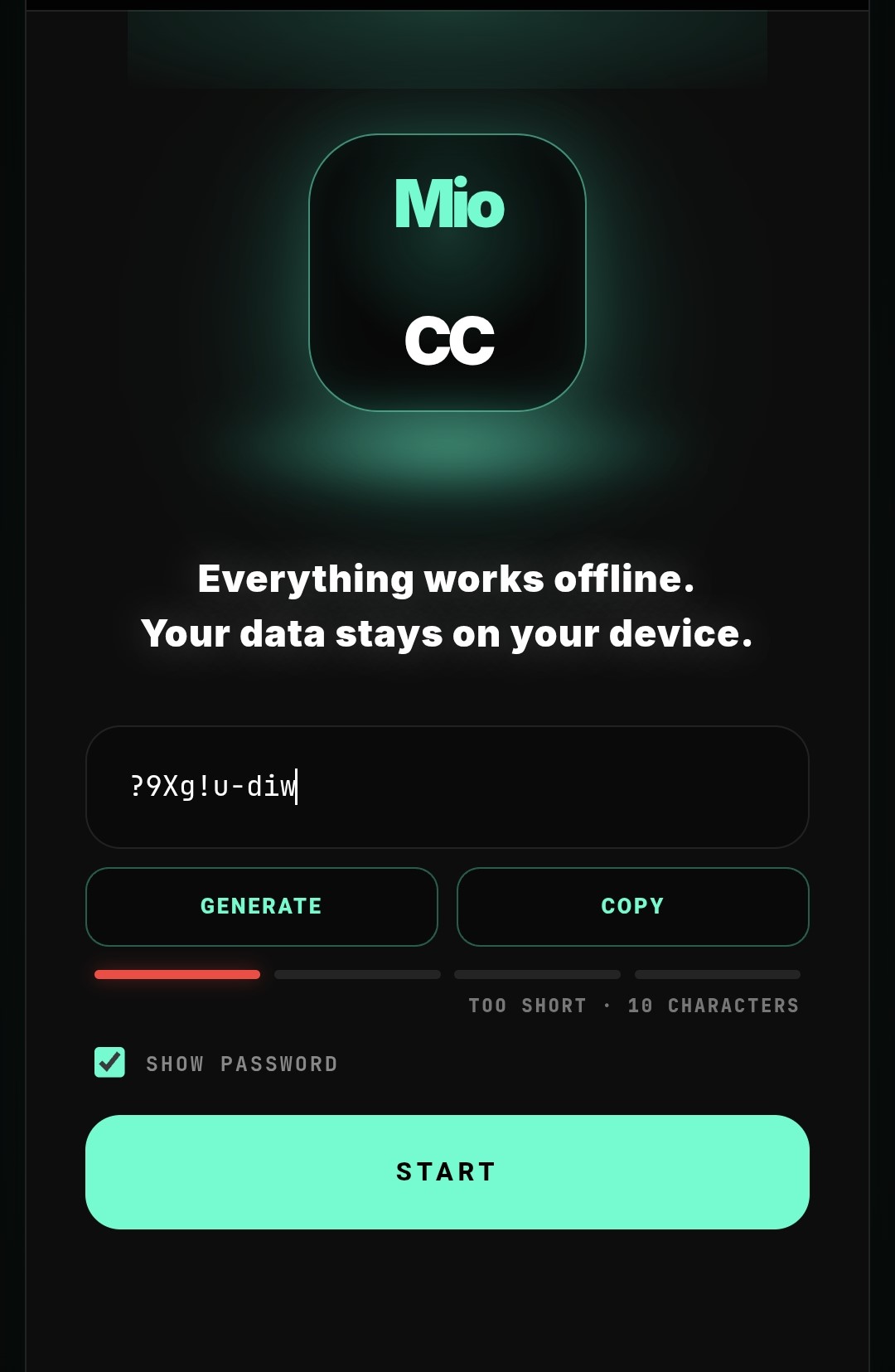
MioCC password and START screen
Enter the password for this session, then press START.
  1. Open MioCC.
  2. Enter a password in the password field.
  3. Press START.
  4. Choose what you want to do next: LOCK or UNLOCK.

LOCK

MioCC mode selection screen
Choose LOCK MODE to protect normal text and files.

Use LOCK when you have normal text, images, documents, video, audio or other files that you want to protect.

  1. Select LOCK MODE.
  2. Add text, files, or both.
  3. Press LOCK.
  4. Keep the protected output and remember the password.

UNLOCK

Use UNLOCK only for content already protected by MioCC. Normal files should not be sent to UNLOCK first.

  1. Select UNLOCK MODE.
  2. Use the same password that was used during LOCK.
  3. Add protected text or protected files.
  4. Press UNLOCK.
  5. Check the restored result.
If UNLOCK refuses a file: the file may not be a MioCC protected file, or the password may be wrong.

Files and text

MioCC text input and attach screen
PASTE is above the text area. ATTACH opens file selection. The main action button runs LOCK or UNLOCK.

Text

You can type text directly into the text area. If the text was copied from another app, press PASTE, located above the text area, and review the pasted content before processing.

Files

Press ATTACH to add files. Android opens the native file picker. Windows opens File Explorer. Selected files appear as cards, thumbnails or extension cards depending on type and platform.

Text and files can be processed together in the same session.

Using camera on Android

On Android, MioCC can use the device camera, when available and permitted, to take a photo or make a recording and add it directly to the LOCK flow. After processing, the protected output can be saved locally or shared through Android native sharing.

Finished

MioCC result screen
The result screen shows processed text, saved output files and report status.

After processing, review the result screen. Text can be copied. Saved files appear as output cards. A report confirms what was processed.

  • COPY copies processed text.
  • SHARE uses Android sharing when available.
  • REPORT opens or points to the local security report.
  • START OVER begins a new session.
1

Capture → Protect → Share

Create protected content directly inside MioCC.

CaptureTake a photo or record a video inside MioCC.
ProtectEncrypt the content before it is saved or shared.
ShareSave locally or choose Android sharing.

1. Capture photos and videos

Capture photos and videos directly inside MioCC. Review them, protect them, then save or share the protected result.

  • CAMTake a photo inside the app.
  • VIDRecord a video inside the app.
  • DELRemove the current capture if it is not the right one.
  • NEWCapture again as many times as needed before encryption.

2. Protect your content

Captured media is not automatically added to your phone gallery. You decide whether to protect, save, share or remove it.

3. Save or share

After protection, save the encrypted result locally or share it using Android's native Share menu.

SaveKeep the protected result on device.
ShareUse Android native sharing.
DeleteRemove the item from the screen.
MioCC capture and protect screen
MioCC protected result screen
You stay in control from capture to protection. Content captured inside MioCC is not automatically added to your phone gallery.
2

Receive → Unlock → View

Access protected content received from any source.

ReceiveGet protected content by any normal method.
UnlockOpen it inside MioCC with the correct password.
ViewReview the restored content locally.

1. Receive protected content

Protected MioCC files can be received through email, messaging apps, cloud storage, USB drives or any other file transfer method.

  • MSGReceive protected text from a message or email.
  • FILEReceive a protected MioCC file from another person or device.
  • APPOpen MioCC and choose UNLOCK MODE.

2. Unlock protected content

Paste the protected text or attach the protected file, enter the correct password and press UNLOCK. MioCC restores the original content locally on your device.

3. View the original content

After a successful unlock, the restored content becomes available inside MioCC. You can review it, copy it, save it or share it.

CopyCopy restored text.
ShareUse Android native sharing.
SaveSave restored output locally.
MioCC unlock protected content screen
MioCC unlocked result screen

Preview Mode: View Before You Open Externally

Preview supported images and videos directly inside MioCC without opening another application.

MioCC preview mode for unlocked media
Close ContentLeaves the preview and returns to the current result view.
PreviewReview supported images and videos inside MioCC.
PanicCloses the current secure view and returns MioCC toward a safer state.
Preview content inside MioCC. Use Panic to immediately close the current protected view.
Only the correct password can restore the original content. MioCC cannot recover forgotten passwords.

Buttons

ButtonPurpose
STARTStarts a secure session after password entry.
LOCK MODESelects protection mode for normal text and files.
UNLOCK MODESelects opening mode for MioCC protected content.
PASTEPastes previously copied text into the text area.
ATTACHAdds one or more files from the device.
LOCKProtects text and files.
UNLOCKOpens protected content with the correct password.
COPYCopies processed text.
SHAREHands protected output to Android's native Share sheet.
REPORTOpens the security report.
EXITLeaves the current mode screen.
PANICEnds the active session view and returns the app to a safer state.

Panic

Panic is the red O inside the CCOMM logo
Panic is the red "O" inside the CCOMM logo on the main app screens.

Panic is the red "O" inside the CCOMM logo. It is available on the main app screens as a quick way to leave the active session view and return MioCC toward a safer state.

In Preview Mode, where the CCOMM header is not visible, Panic appears as a separate red button in the upper-right corner so the protected preview can be closed immediately.

  • It leaves the active working view.
  • It clears current temporary session/on-screen data where the app session supports it.
  • It returns the user toward the password/start state.
  • It does not recover passwords.
  • It does not delete files that were already saved to local storage.
  • It is not a secure erase feature.
Important: Panic protects the current session view. It is not a substitute for deleting saved files from device storage.

Reports

MioCC can generate a local report for each operation. Reports help confirm what was processed and whether the operation finished successfully.

Reports may include

  • operation type: LOCK or UNLOCK;
  • edition and platform;
  • number of files processed;
  • input and output sizes;
  • operation status and timing;
  • session identifier.

Reports do not include

  • passwords or PINs;
  • plaintext content;
  • file contents;
  • encryption keys;
  • raw encrypted payload.

Folders

The default output folders are created under the user's Documents directory on Windows Desktop.

Example:

  • Documents\MioCC\encrypted - protected output files.
  • Documents\MioCC\decrypted - decrypted output files.
  • Documents\MioCC\text - processed text output.
  • Documents\MioCC\reports - security reports.

Folder behavior may be updated in future versions. Android storage follows Android file and sharing rules and may vary by device.

Sharing

On Android, MioCC hands the protected output to Android's native Share sheet. Android then lets the user choose an installed app or sharing method.

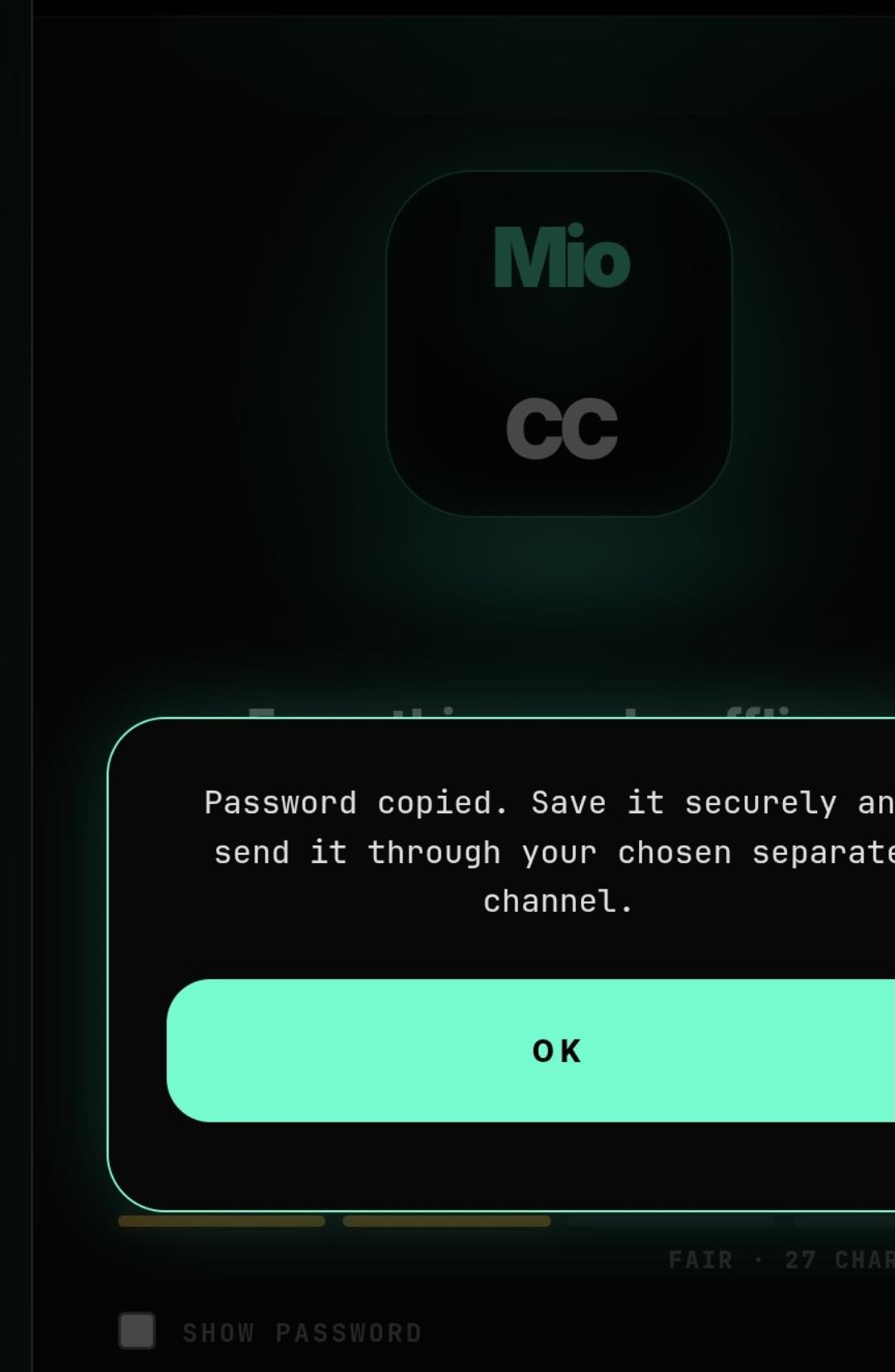
Do not send the password in the same channel as the protected file. The recipient needs MioCC and the correct password to unlock protected content.

Windows desktop guide

MioCC Windows desktop interface
Windows uses a landscape workspace: mode selection, input, output, report and local folder actions are visible in one view.
  • ATTACH opens Windows File Explorer.
  • Output is organized into local folders.
  • Opening files depends on local Windows applications that support the file type.

Troubleshooting

I forgot my password.

MioCC cannot recover it. Try the exact password used during LOCK. If it is lost, protected content cannot be unlocked by MioCC.

I entered the wrong password.

UNLOCK will not restore protected content with the wrong password. Enter the exact password used when the content was locked. MioCC does not reveal or recover the original password.

UNLOCK does not accept my file.

Make sure the file was created by MioCC and that you selected UNLOCK, not LOCK.

I cannot find saved files.

On Windows, check the default MioCC folders under Documents. On Android, check Android file manager, Downloads, recent files and the target app used for sharing.

A file does not open externally.

Install or select an application that supports that file type. MioCC protects and restores files, but opening a file depends on local viewer support.

Processing is slow.

Large files depend on CPU, RAM, disk speed and platform behavior. Keep enough free storage and avoid running heavy tasks at the same time.