
MioCC Quick Start
Protect and restore text and files with the current Android workflow.
Before You Begin
- Use only MioCC obtained from an official authorized source.
- Choose a strong unique password and save it securely before encryption.
- MioCC cannot recover a lost password.
- Send the encrypted content and its password through separate trusted channels where appropriate.
1. Prepare the Password
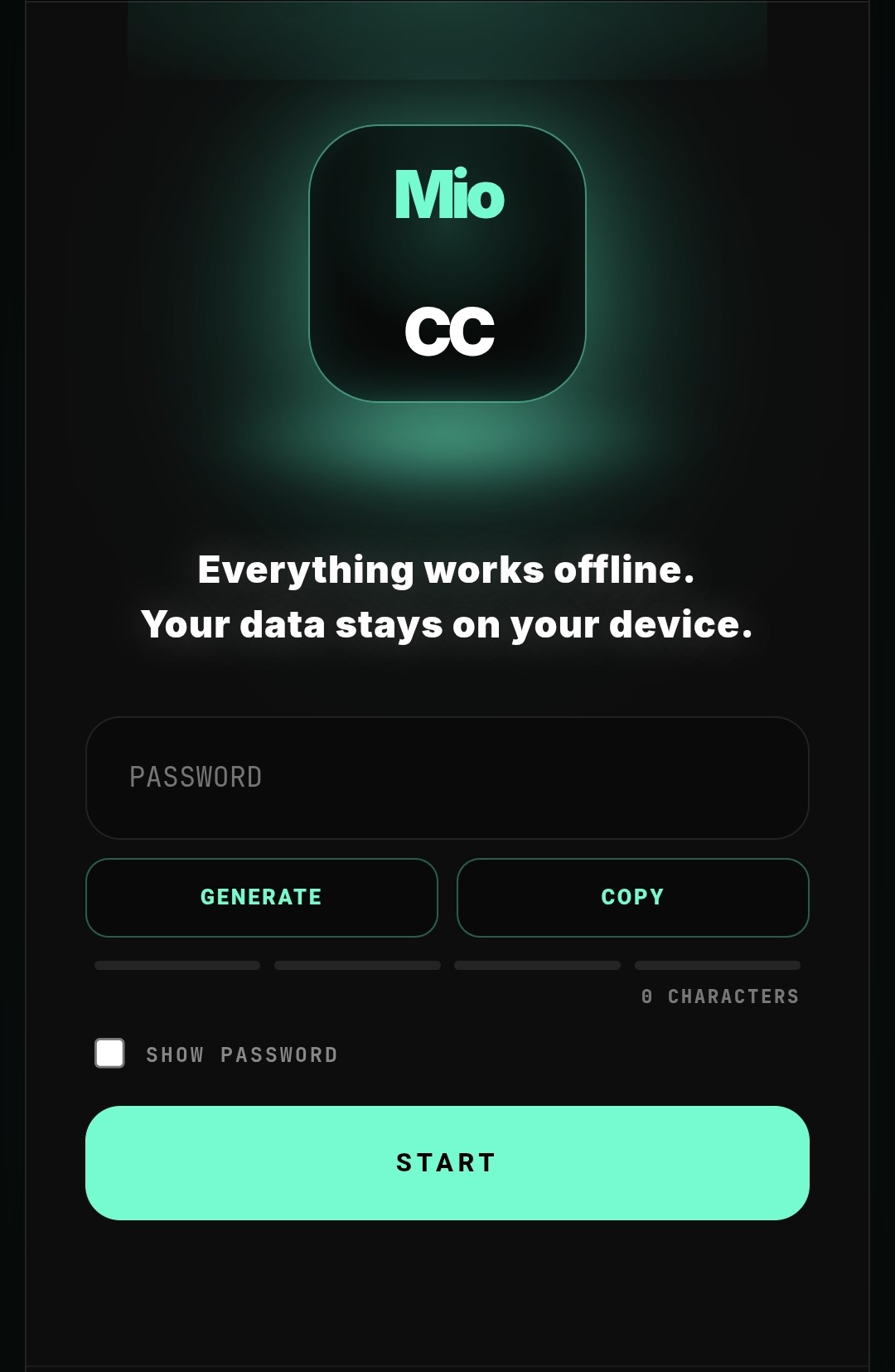
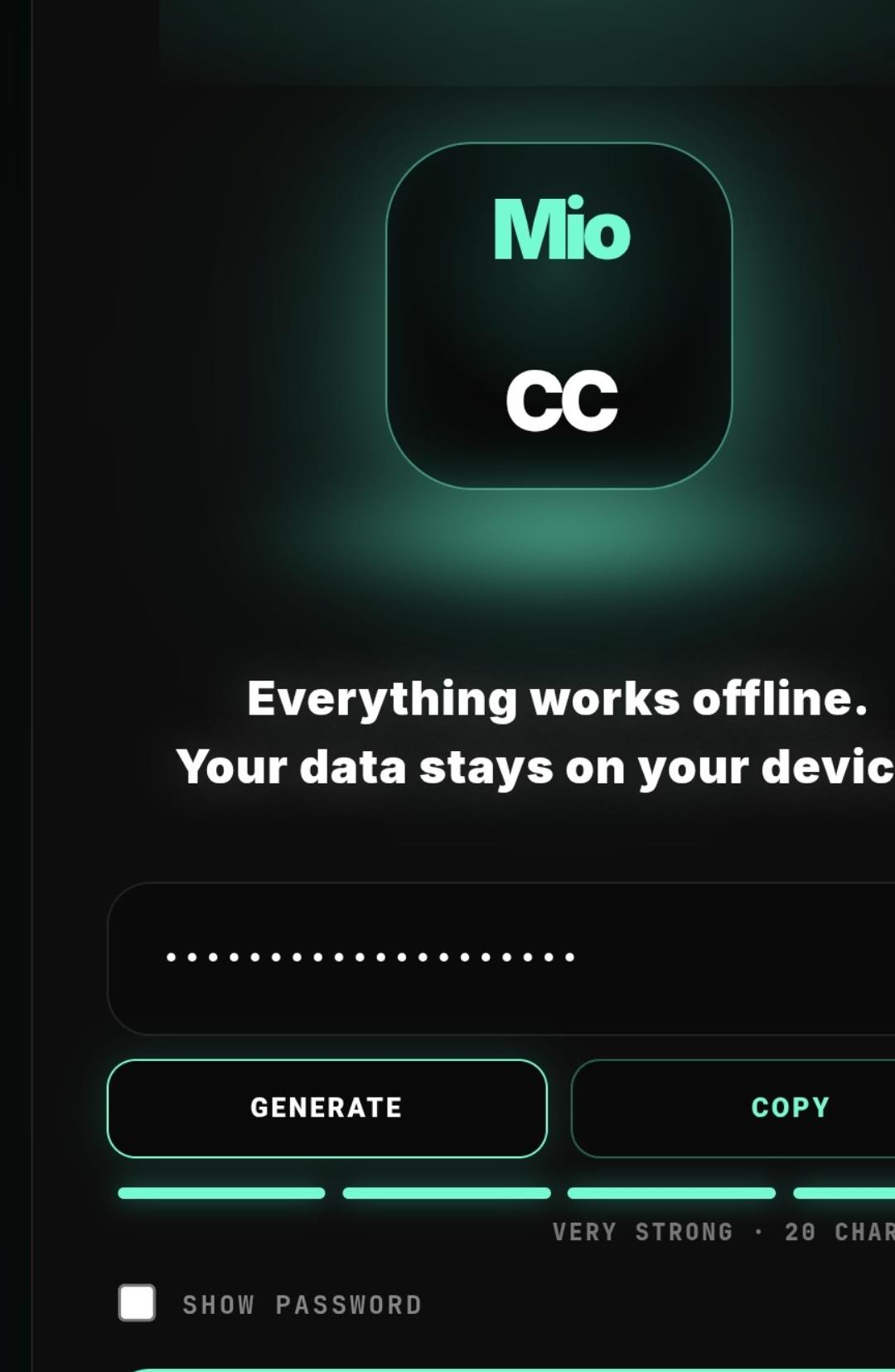
Enter a password manually, use PASTE to insert the exact clipboard text without revealing it, or press GENERATE to create a cryptographically random 20-character password locally. PASTE does not trim or normalize the value and does not start processing. The four-bar strength indicator is advisory and cannot guarantee resistance to every attack. COPY places the password in the operating-system clipboard. SHOW PASSWORD reveals it only on the current device screen.
2. Start and Select a Mode
- Press START after the password is safely recorded.
- Choose LOCK MODE for ordinary text or files that need protection.
- Choose UNLOCK MODE only for MioCC-protected text or files.
- EXIT leaves the mode-selection screen.
3. Lock Content
- Type or paste text, attach a supported file, or use both where the edition permits.
- Review the selected input.
- Press LOCK.
- Save or share the protected output through the platform workflow.
4. Unlock Content
- Use the exact password used during LOCK; PASTE may be used to insert it without displaying it.
- Paste MioCC-protected text or attach a MioCC-protected file.
- Press UNLOCK.
- Review, save or share the restored result locally.
5. Offline and Online Functions
Core encryption and decryption take place locally and do not require an Internet connection. Internet access may be required for download, license activation or verification, updates, support, or a user-initiated transfer through a third-party service.
6. Panic, Exit and Start Over
Panic closes the active protected view and clears supported temporary on-screen or session data. Exit and Start Over leave or restart the current workflow according to the screen. These controls do not securely erase files already saved to storage.
7. Edition Limits
| Edition | Current core limits | Report |
|---|---|---|
| FREE | 1,000 text characters; one file; image up to 10 MB; PDF up to 2 MB; current 90-day evaluation period | None |
| LIGHT | 50,000 text characters; up to 10 files; session up to 300 MB; PDF up to 20 MB; supported image, text, audio and video types | Basic |
| PRO | Large workflows subject to device capacity, available memory and the application's memory guard | Advanced |