
MIOCC INSTALL GUIDE
Password Screen
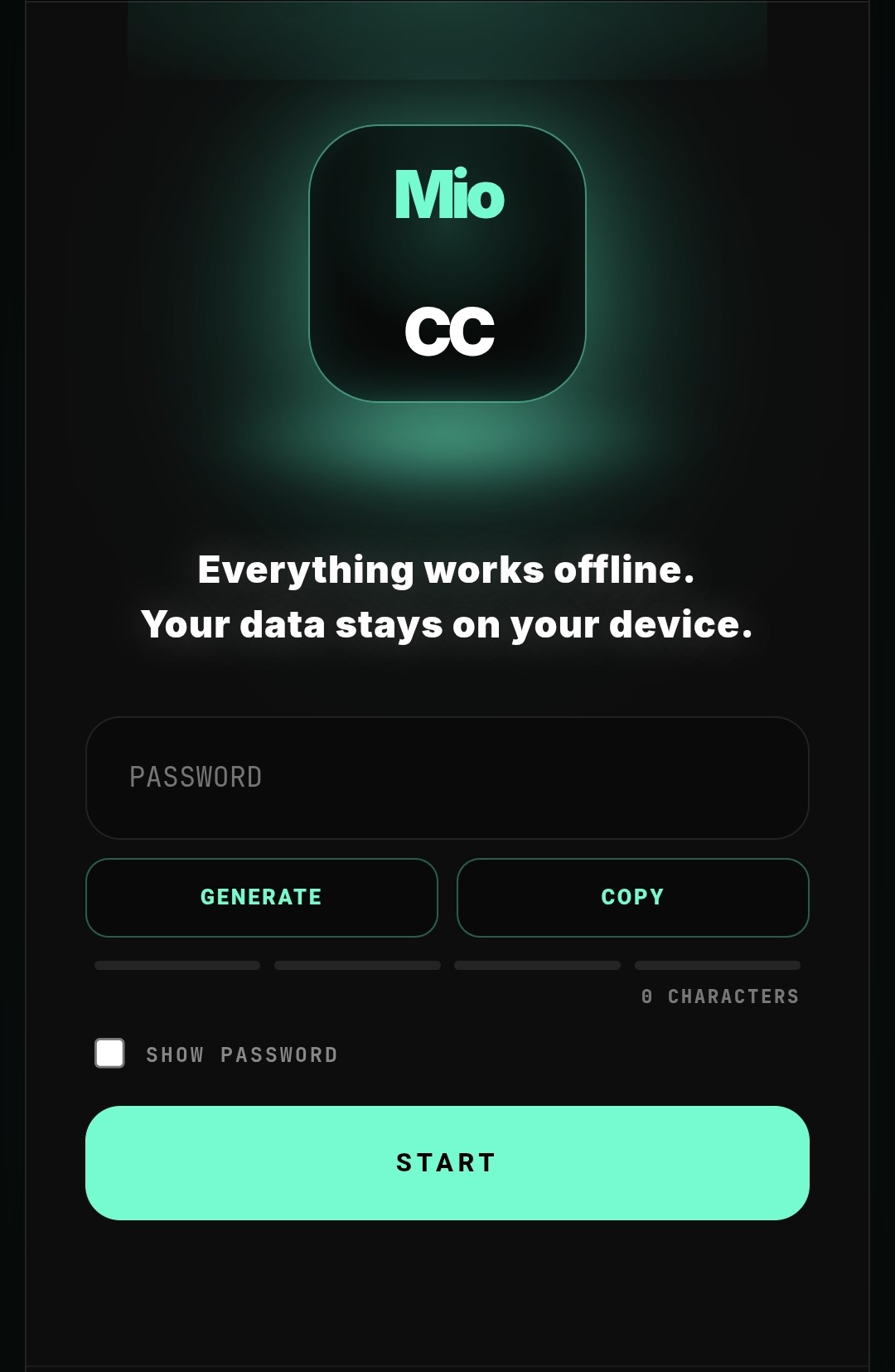
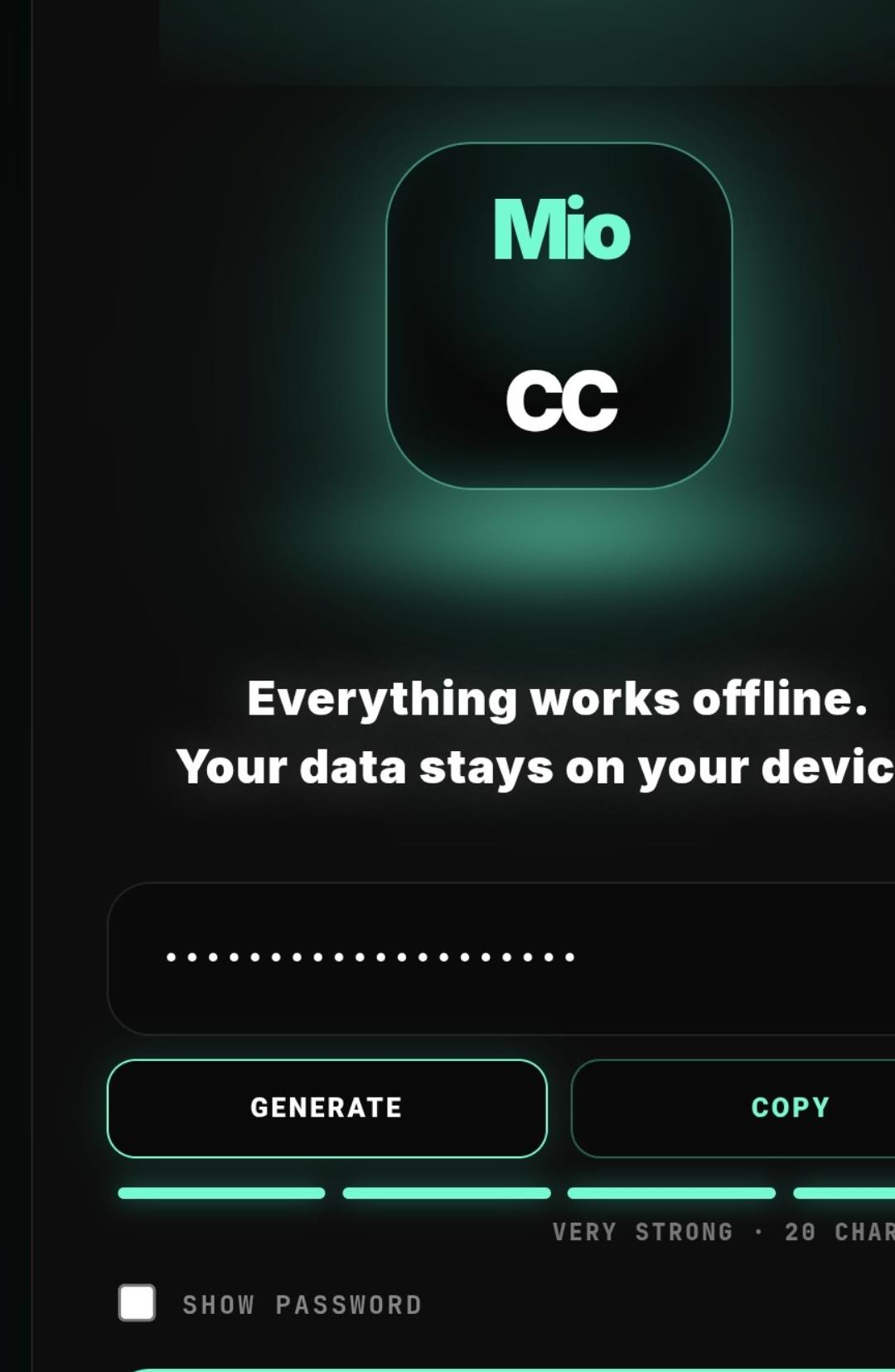
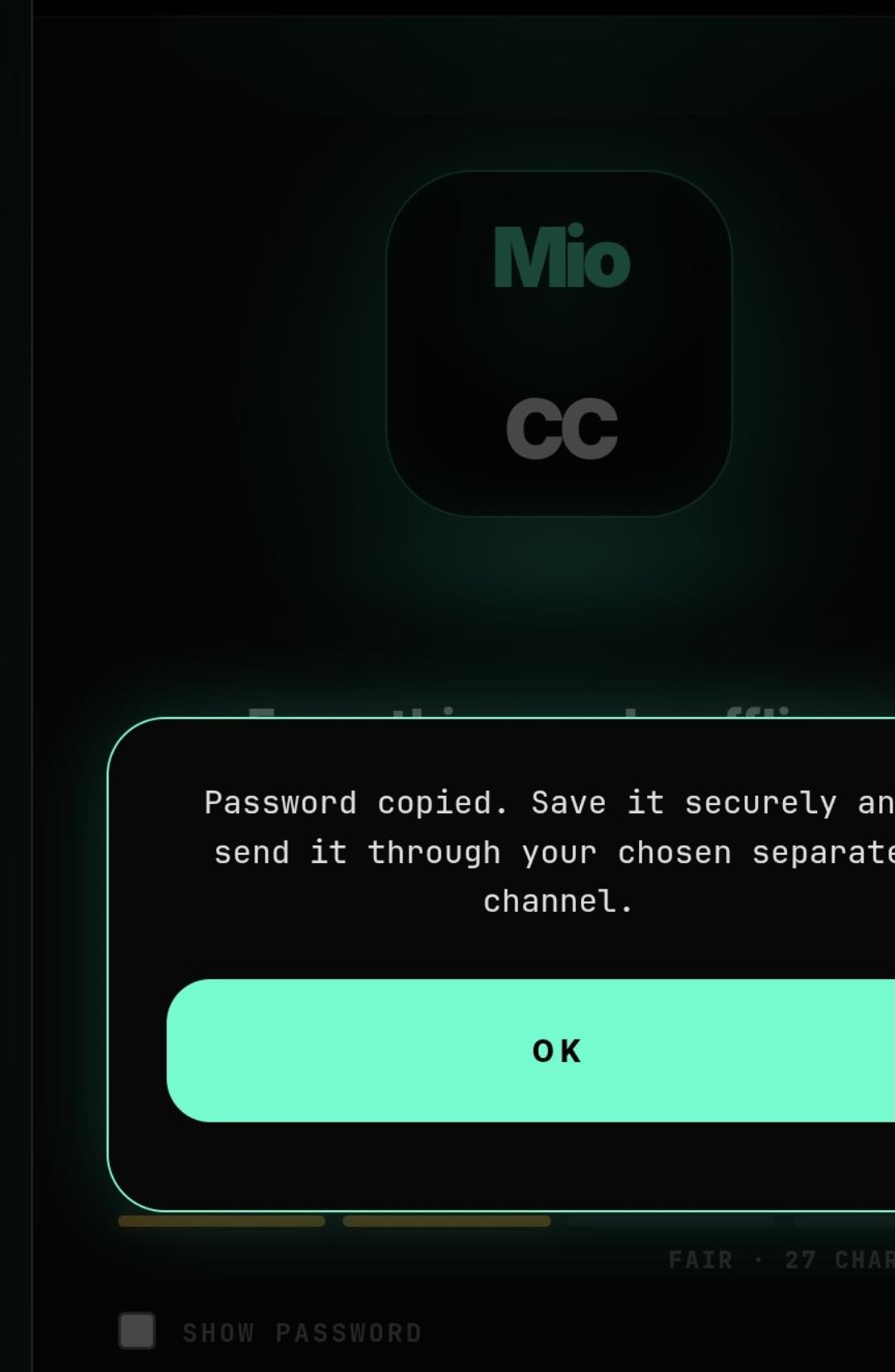
The current Android password screen supports manual entry, exact clipboard PASTE, local generation, advisory strength guidance, clipboard COPY and optional on-screen visibility. PASTE leaves the password hidden and does not start processing.
Overview
This guide explains the installation, first start, local file access and license activation of MioCC.
MioCC's core encryption and decryption functions work locally on the user's device and do not require an Internet connection. Internet access may be required for separate functions such as license activation, updates, support, or when the user chooses to share already protected content through an online third-party service or application.
AUTHORITATIVE LANGUAGE
English is the authoritative language of this guide. Translations may be provided for convenience. Where mandatory applicable law requires information in another language, that requirement prevails.
1. INSTALLATION
Install MioCC only from Google Play or another official distribution source authorized by MioCC.
When installing outside Google Play or another recognized official app store, continue only if you are certain that the installation package originates from an official MioCC source.
Do not install modified, repackaged or unofficial versions of MioCC.
2. FIRST START AND EDITIONS
Open MioCC and select the preferred application language.
For local encryption or decryption, enter a password manually or use GENERATE to create a cryptographically random 20-character password on the device. The four-segment strength indicator is local guidance only and does not transmit or store the password.
Use COPY when you need to transfer the password to a password manager or to another device. COPY places the password in the operating-system clipboard. PASTE inserts the exact clipboard text into the password field without trimming or changing it. PASTE does not reveal the password and does not start encryption or decryption. If direct clipboard access is unavailable, long-press the password field and select the operating-system Paste command. Clear or replace clipboard contents after use where the device permits it.
SHOW PASSWORD reveals the password only on the current device screen. Use it in a private environment and hide the password again after checking it.
MioCC does not automatically send, synchronize or retain the password for local encryption or decryption.
The Android application currently distributed through Google Play is the FREE, consumption-only edition and does not sell licenses or paid functionality inside the app.
The FREE edition may be used without a paid license. LIGHT and PRO functionality requires a valid applicable license purchased separately through Paddle and activated through the LIC section of MioCC.
Follow the activation instructions displayed in the application.
3. ACCESS TO FILES AND CONTENT
MioCC processes only content that the user intentionally selects, provides, imports, shares with the application or otherwise makes available to it for a requested operation.
When Android requests permission or presents a system file or content selector, grant access only when you intend to use the corresponding MioCC function.
MioCC does not require general access to browse, search or inspect unrelated files or folders on the device in order to perform its core encryption and decryption functions.
Files intentionally saved, exported or shared outside application-private storage remain under the user's control and may remain after MioCC is removed. Manage those files through the selected storage location or receiving application.
4. PASSWORD AND RECOVERY
A password may be entered manually or generated locally by MioCC. The password-strength indicator is advisory: it can help identify obvious weakness, but it cannot guarantee that a password will resist every attack.
Save the password securely before starting encryption. The same password is required to decrypt the protected content on this or another device.
When another person or device needs the password, send it through a separate trusted communication channel chosen by the user, preferably not through the same channel used to send the encrypted file.
COPY and PASTE use the operating-system clipboard. PASTE replaces the password field with the exact clipboard text only when the user selects that control; it does not reveal the password or begin processing. Clipboard contents may remain available to the operating system, keyboard software or other applications, depending on the device. SHOW PASSWORD makes the password visible on the screen. Use COPY, PASTE and SHOW PASSWORD carefully and only in a private environment.
Passwords used for local encryption or decryption are not sent to the MioCC developer merely for performing those operations. MioCC does not provide a cloud password vault, cross-device password synchronization, password reset or developer-assisted recovery.
MioCC is designed so that passwords, PINs, private cryptographic keys and other secrets required for local protection are not available to the developer for recovery purposes.
If the information required to unlock protected content is lost, MioCC may be unable to recover or reconstruct that content.
Keep passwords and any other required recovery information secure. Do not send passwords, PINs, private keys or unprotected confidential files to MioCC support.
5. OFFLINE PROTECTION
Encryption and decryption are performed locally on the user's device.
Original files, plaintext content, passwords, PINs and private cryptographic keys are not uploaded to the MioCC backend merely because the user encrypts or decrypts content.
Certain separate functions, such as licensing, activation, updates, support or user-initiated sharing through external services, may communicate with external systems as described in the MioCC Privacy Policy.
6. LICENSE ACTIVATION
LIGHT and PRO functionality requires a valid applicable license.
License activation and verification may use limited licensing information, including:
• license identifier;
• customer email associated with the license;
• MioCC edition;
• license and activation status;
• permitted or registered device count;
• expiration or validity information, where applicable;
• transaction identifier;
• device or installation identifier;
• device platform and label;
• activation and last-seen timestamps; and
• other limited technical metadata reasonably necessary to issue, administer, secure or verify a license.
This licensing information is separate from the contents of the user's files, messages, passwords, PINs and cryptographic secrets processed locally by MioCC.
The availability of licensed functionality depends on the validity and status of the applicable license. Removing licensing data may affect future activation, reactivation or verification of paid functionality.
7. UPDATES
Use official MioCC distribution channels for application updates.
Updates may contain security improvements, bug fixes, compatibility changes or new functionality.
Using an outdated application or operating-system version may affect compatibility, functionality or security.
8. HELP, PRIVACY AND SUPPORT
For instructions on using MioCC, see the Help section in the application.
For information about personal-data processing, service providers, retention periods and privacy rights, see the MioCC Privacy Policy.
For license conditions and user obligations, see the MioCC Terms of Use and applicable license terms.
For legal, privacy and support questions, contact:
mio.ccomm@gmail.com
Official legal information is available at:
Privacy Policy: https://ccyph.com/legal/privacy.html
Data Deletion Requests: https://ccyph.com/legal/data-deletion.html
License Terms: https://ccyph.com/legal/license.html
Payment and Refund Information: https://ccyph.com/legal/refund.html
MioCC cannot recover a password or other secret that it is technically designed not to retain.